
What You’ll Learn
- Scanning child sites with Sucuri SiteCheck
- Viewing previous scan reports and settings
- Setting scan reminders for child sites
- SSL certificate verification during scans
Integration Add-on - This add-on connects MainWP Dashboard to Sucuri SiteCheck. It does not require the Sucuri plugin on your child sites.
The MainWP Sucuri Extension uses Sucuri’s proprietary SiteCheck Tool to scan your sites. Sucuri provides web-based malware scanning of your websites using the latest fingerprinting technology, allowing you to determine if your web applications are out of date, exploited with malware, or even blacklisted by popular search engines.
Important Notes:
The add-on supports manual scans of one website at a time. Scheduled scans and scanning multiple websites at once are not supported.
A Sucuri.net subscription is not required for this add-on to function.
Scan Your Child Site With Sucuri
1
Log in to your MainWP Dashboard
2
Go to Sites > Security > Sucuri
3
Locate the site that you want to check and click the Scan Now button
Locate the site that you want to check and click the Scan Now button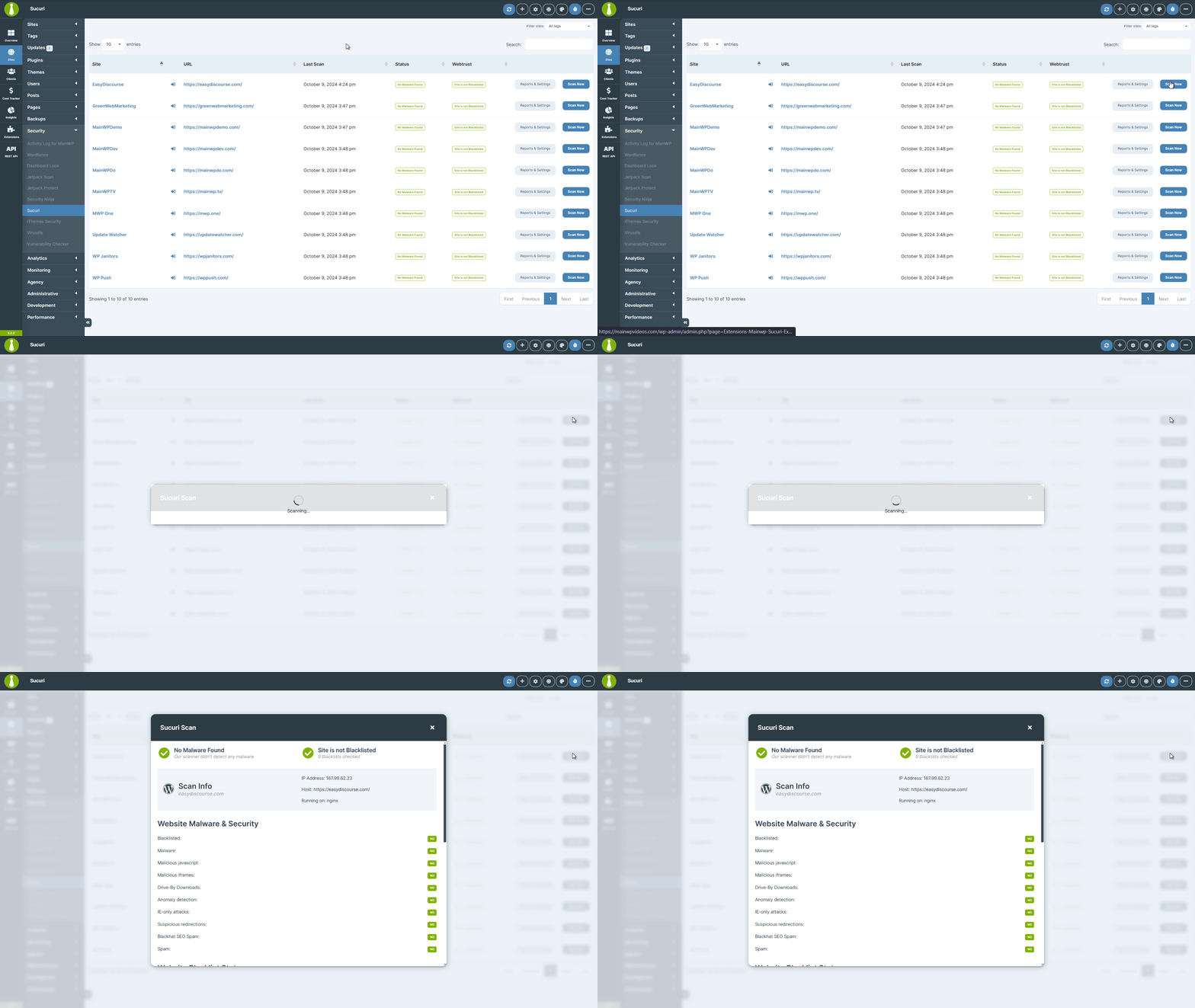
When a scan cannot connect
If your MainWP Dashboard cannot reach the Sucuri scanner, the scan fails and shows this message:- Wait a few minutes and click Scan Now again.
- If the scan keeps failing, confirm that your Dashboard server can make outbound HTTPS connections and has an up-to-date CA certificate bundle.
Earlier versions of the add-on could turn off Verify SSL Certificate automatically after a failed connection. If you upgraded from one of those versions, open Reports & Settings and confirm the setting matches your preference. The add-on does not switch the setting back on for you.
Previous Child Site Reports and Settings
1
Log in to your MainWP Dashboard
2
Go to Sites > Security > Sucuri
3
Locate the desired site and click the Reports & Settings button
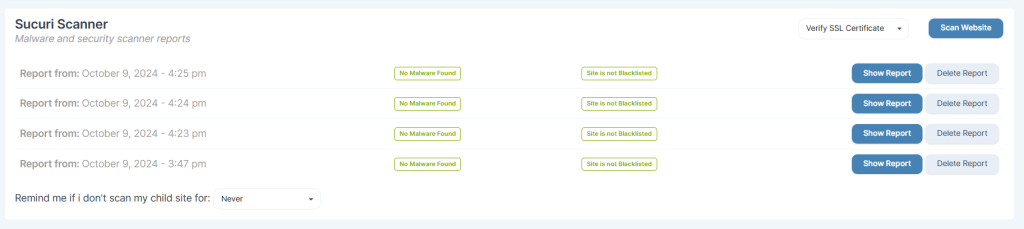
- Choose whether to Verify SSL Certificate for Sucuri scan requests. This setting applies to all sites. Failed scans do not change it.
- Show and Delete any of the previous reports
- Set to be reminded if you don’t scan this child site (Never, 1 Day, 1 Week, 1 Month).
Database Health Check
The Sucuri Extension supplies its scan status and scan report tables, along with their expected column definitions, to MainWP Dashboard’s database schema checks. With MainWP Dashboard 6.2 or later and the Extension active, open MainWP > Info > Server and review the Database section for missing tables, missing columns, or incorrect column definitions. Use this check when Sucuri scan reports, scan reminders, or saved settings fail to load or save. See Database Health Check for interpreting the results and preparing a support report. These checks report the Dashboard database structure. They do not repair tables or scan your Child Sites.Related Resources
- Security Add-ons - Browse all security tools
- Database Health Check - Check the Extension’s Dashboard database structure
- Wordfence Integration - Alternative security integration
- Vulnerability Checker Extension - Scan for known vulnerabilities