
What You’ll Learn
- Connecting your Pressable account to MainWP
- Creating new Pressable sites from the Dashboard
- Managing CDN, backups, and site state
- Understanding the Dashboard page features
Install the Integration
Follow these steps to install the Pressable Integration.Go to your MainWP Dashboard
Go to the MainWP Dashboard > Add-ons > Manage Add-ons page
Click the Install Add-ons button
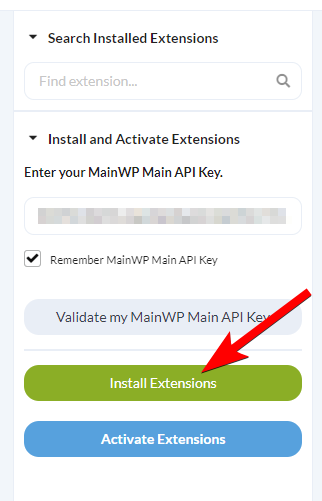
Locate the Pressable Integration and select it
Click the Install button
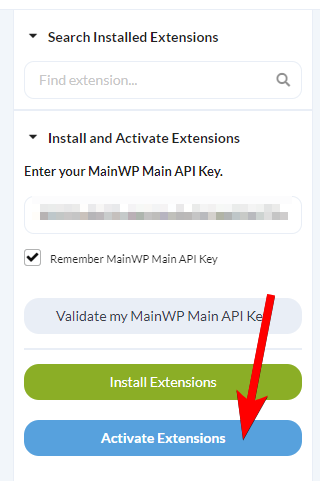
Once the installation process is complete, click the Activate Add-ons button.
Connect the Integration to Your Pressable Account
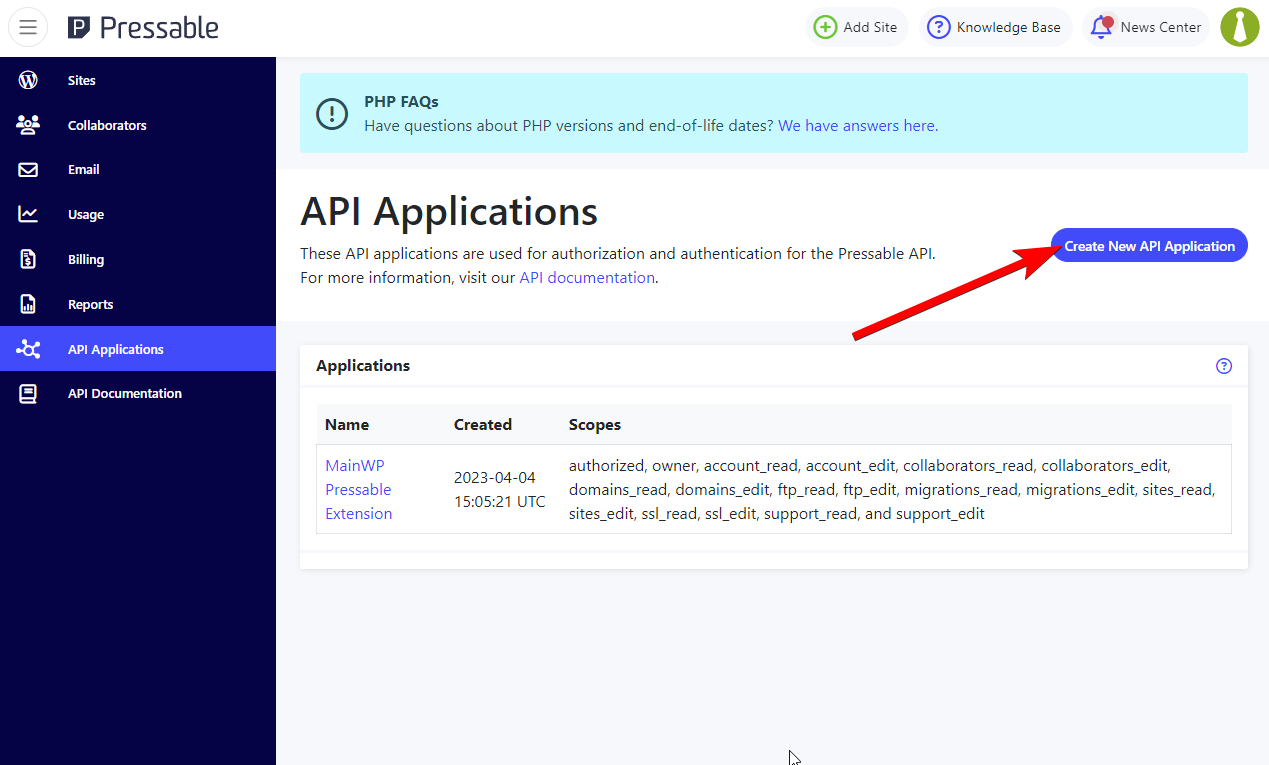
Navigate to your Pressable account and open the API Application page
Click the Create New API Application button
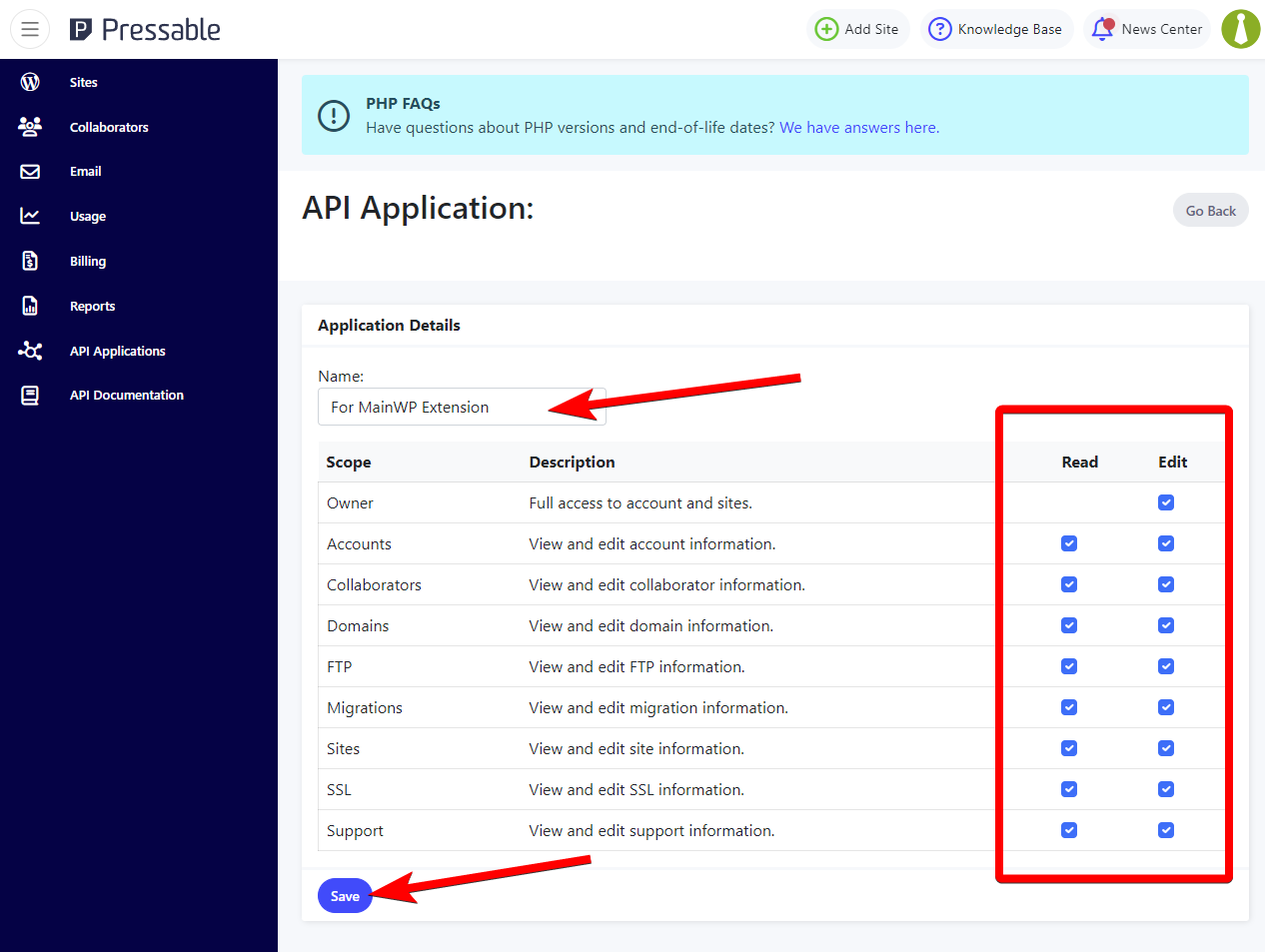
Enter a desired name for the API Application, give the application all permissions, and click the Save button
You will be presented with a Client ID and Client Secret
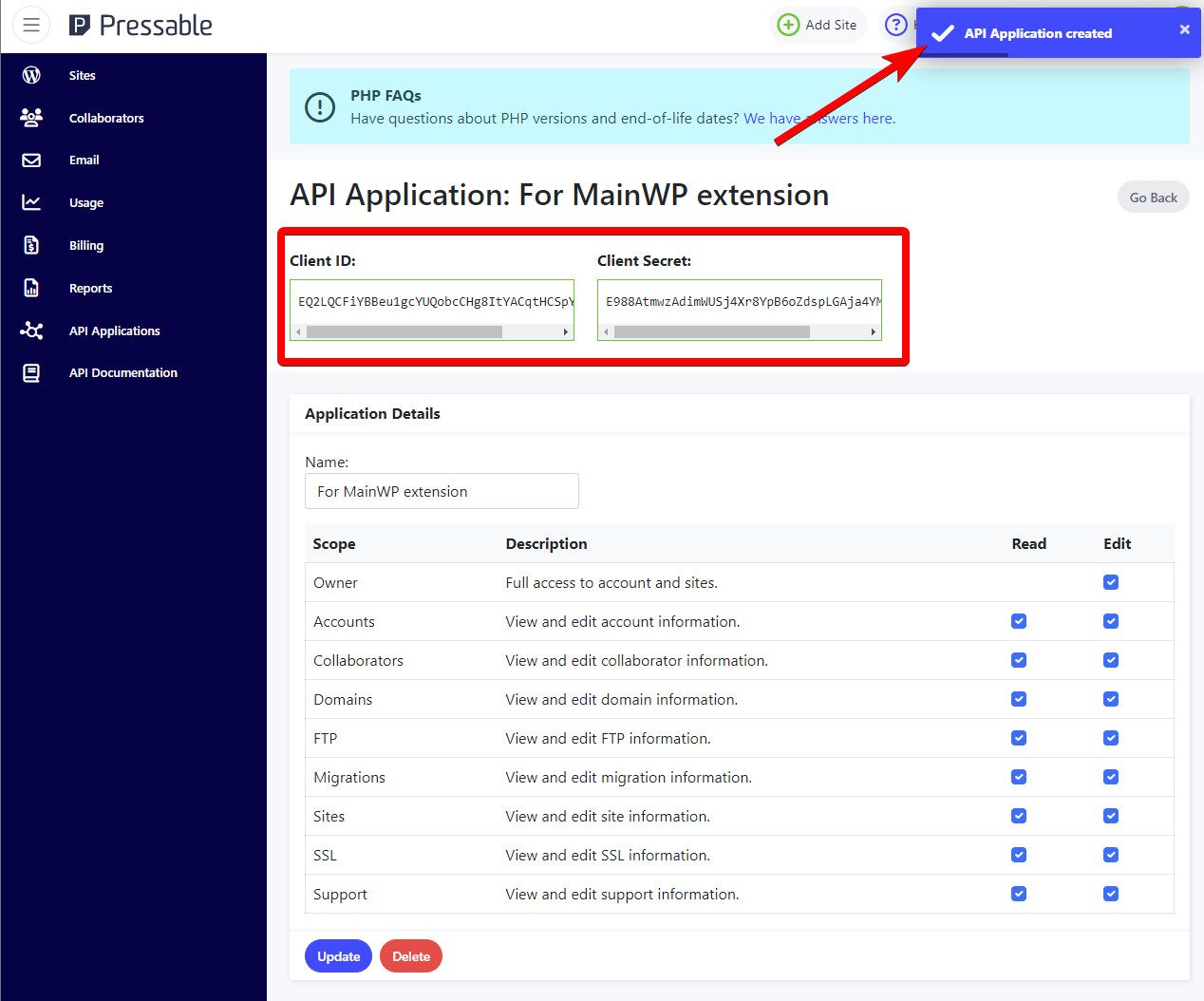
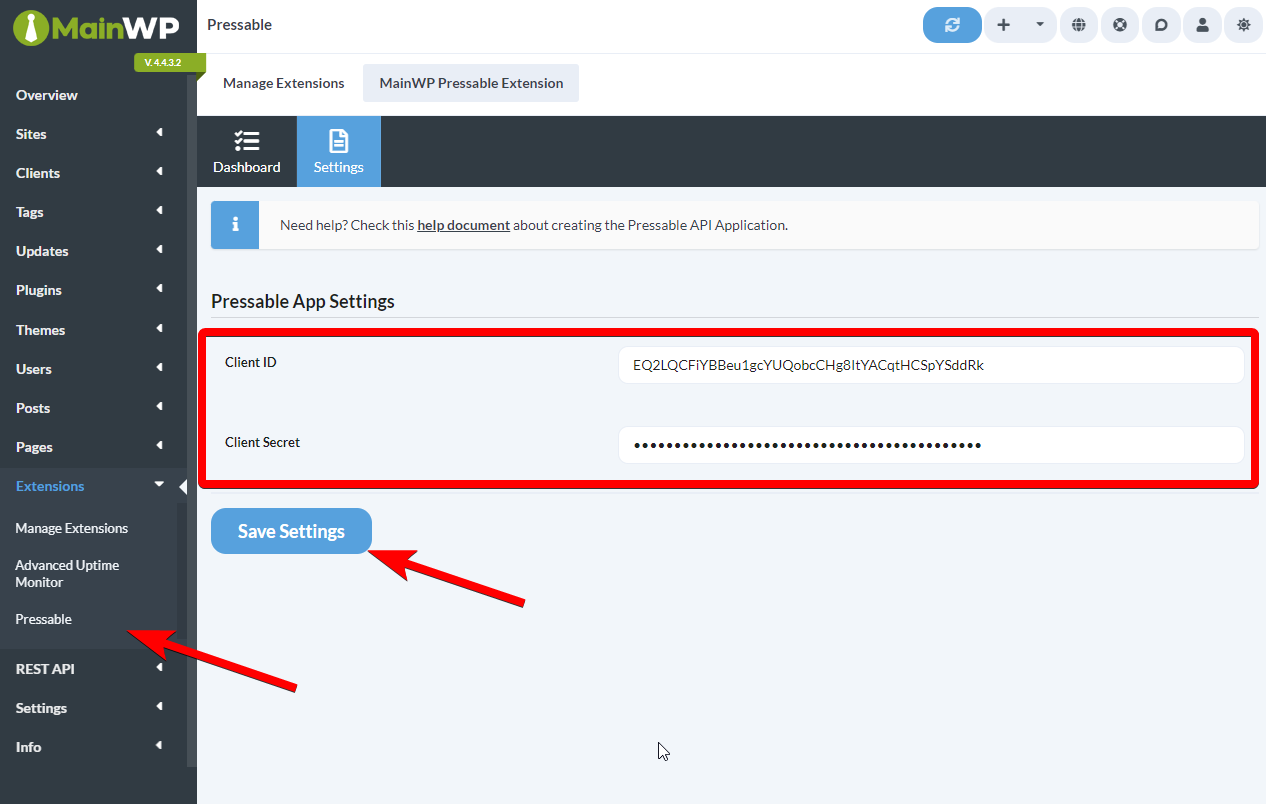
Now navigate to your MainWP Dashboard > Add-ons > Administrative > Pressable page, and open the Settings tab
Enter the Client ID and Client Secret and click the Save Settings button
Team Control compatibility
The Pressable Integration respects access restrictions configured by the Team Control Extension. Add-on access controls whether a team member can see the Pressable menu. It does not, by itself, authorize hosting actions.Site-level access for Pressable actions
Site refreshes, enable/disable, deletion, environment changes, CDN changes, and restores require access to the mapped MainWP child site. Restores require access to both the source and destination. An unmapped or inaccessible site cannot be used, including by an administrator. Follow Site matching by primary URL and custom domains to review and save the mapping; reloading data alone does not apply a suggested match. Review the user’s role in Team Control under Edit Role / Manage Permissions, including its Pressable permissions and Allowed Sites. Hosting controls also require the WordPressmanage_options capability and Pressable Manage Hosting; account operations can require Manage Account. See Pressable access requirements before granting access.
Clearing Pressable credentials
The Settings tab shows whether credentials are configured. The Client ID and Client Secret fields stay blank to protect the saved values. Leave both fields empty to keep the existing connection. To replace it, enter both new values and save. Invalid credentials leave the working connection in place. To disconnect, select Clear the configured Pressable credentials and click Save Settings. This clears the saved connection and synced site data. It does not delete sites at Pressable.Empty-state placeholders
The Dashboard tab shows contextual placeholders when there is nothing to display:- No credentials saved — a Pressable API Credentials Required placeholder links you to the Settings tab to add a Client ID and Client Secret.
- Credentials saved but no sites found — a No Pressable Sites Found placeholder prompts you to create a site in Pressable or reload Pressable API data to sync sites.
Site matching by primary URL and custom domains
The mapping page suggests MainWP child sites whose URLs match a Pressable primary URL or custom domain. Review and apply the suggested association before managing the site through MainWP.- Open MainWP > Add-ons > Pressable > Dashboard and click Reload Pressable API Data to refresh the account.
- Find Unmapped Pressable sites. Review the selected MainWP site for each row. Suggested from URL match is a proposal, not a saved association.
- Click Map for one reviewed row, or Map all suggested after reviewing every suggested target. If there is No unique match or Several matches, select the intended MainWP site yourself.
Integration Dashboard Page
This page contains all of the features or shortcuts to the features of the Pressable Integration.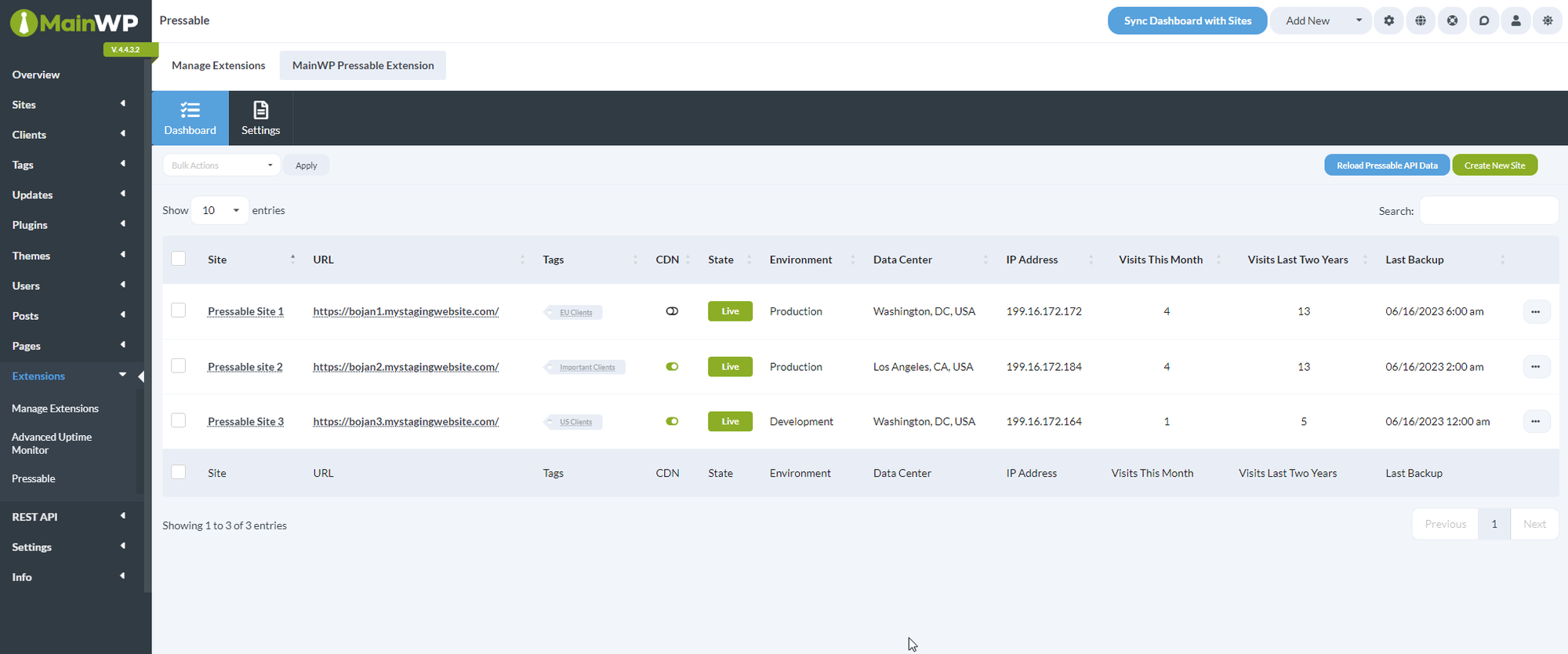
- CDN: Shows a graphical indicator of whether the Pressable CDN is enabled on the child site
- State: Displays the status of the child site, either Live or Disabled
- Environment: Displays the environment type, either Staging, Development or Production
- Data Center: Displays the location of the Pressable data center where the child site is hosted at
- IP Address: Displays the IP Address of the Pressable data center where the child site is hosted at
- Visits This Month: Displays the number of visits for this child site for this month, as logged by Pressable
- Visits Last Two Years: Displays the number of visits for this child site for the last two years, as logged by Pressable
- Last Backup: Displays the date and time of the last performed Pressable backup
Create a new Pressable site
Navigate to MainWP Dashboard > Add-ons > Administrative > Pressable page
Click the Create New Site button
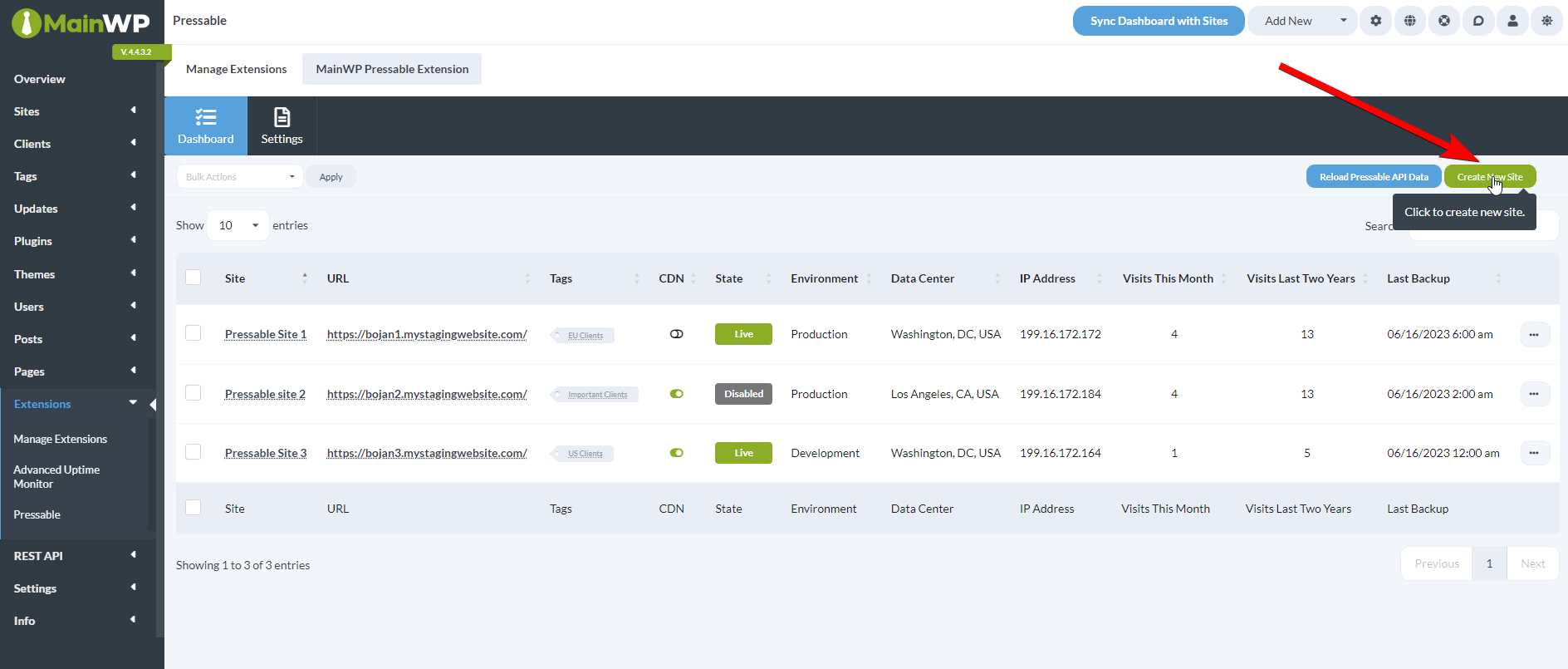
Enter the information for the new site
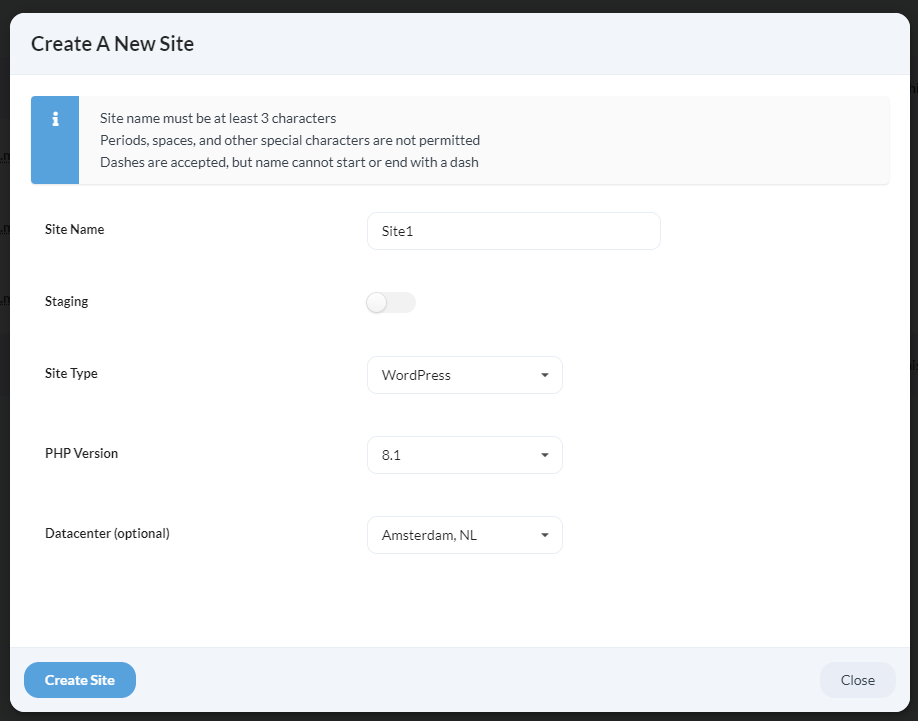
- Enter a Site Name with 4-63 lowercase letters, digits or dashes. Start and end with a letter or digit. 2. Choose whether the site should be Staging or not 3. From the Site Type dropdown, select either WordPress or WooCommerce 4. From the PHP Version dropdown, select the available PHP version 5. From the Datacenter dropdown, optionally select the location of the data center
Click the Create Site button
Available Actions for Child Sites
Site actions are in the ellipsis menu. The Bulk Actions menu also supports enabling, disabling or deleting sites, converting between live and staging, and enabling or disabling CDN.- Sync Data: Synchronizes the child site through the MainWP Dashboard site sync
- Overview: Opens the Child Site Overview on the MainWP Dashboard
- Edit: Opens the Child Site Edit page on the MainWP Dashboard
- Enable/Disable Site: Changes the State of the site in the Pressable hosting account to either Live or Disabled
- Delete Site: Deletes the site from the Pressable hosting account
- Convert to Staging / Staging to Live: Converts the site either from Staging to Live, or from Live to Staging
- Enable/Disable CDN: Either enables or disables the CDN feature on the Pressable hosting account
- Manage Backups: Opens the site’s Pressable backups. Click Restore Site, then choose the source backup, destination site, and available files or database. If you select both files and database, choose the same backup point for both. A restore overwrites destination content; keep a separate backup of that destination first.
Automate Pressable hosting tasks
The Pressable Abilities API can read cached status, manage the connection and mappings, refresh hosting information, change site state, create or delete sites, and restore backups. Changes require a preview and confirmation. Queued work returns an operation ID so your tool can check completion.Related Resources
- Development Add-ons - Browse all development tools
- Hosting Compatibility - Hosting provider information
- Manage Child Sites - Site management guide