
What You’ll Learn
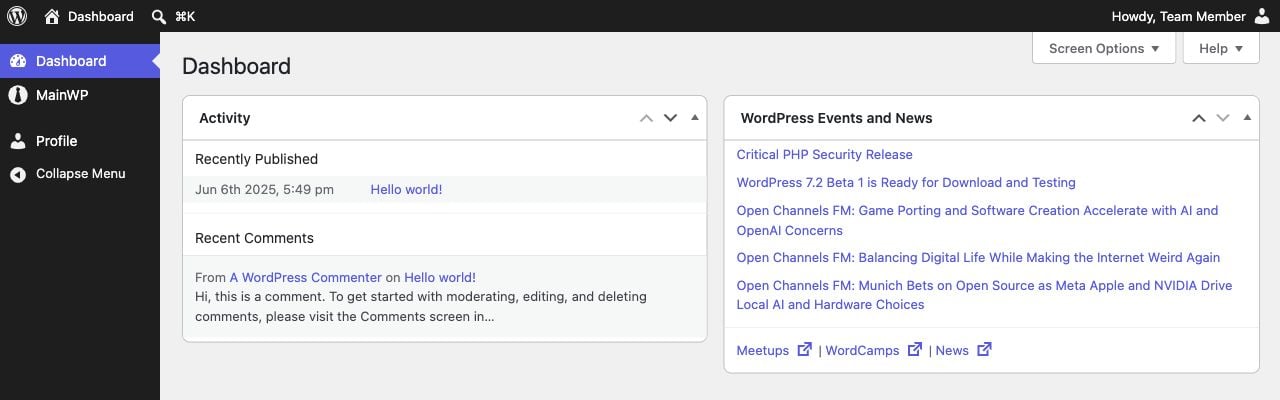
- Understand WordPress admin access for custom roles in 5.2
- Upgrade existing roles and resolve roles placed on hold
- Create custom roles and assign them to team members
- Define permissions, allowed add-ons, and allowed Child sites
- Control access to MainWP abilities and MCP
Prerequisites
- An active MainWP Dashboard and Team Control 5.2.0.
- A Team Control owner account to manage roles and users.
- Connected Child sites if you want to assign site access.
/wp-admin/admin.php?page=Extensions-Mainwp-Team-Control). To set up your team:
Create your custom role(s)
Define permissions and select allowed add-ons and child sites for the role(s)
Create new users (optional)
Assign the role to Dashboard site users
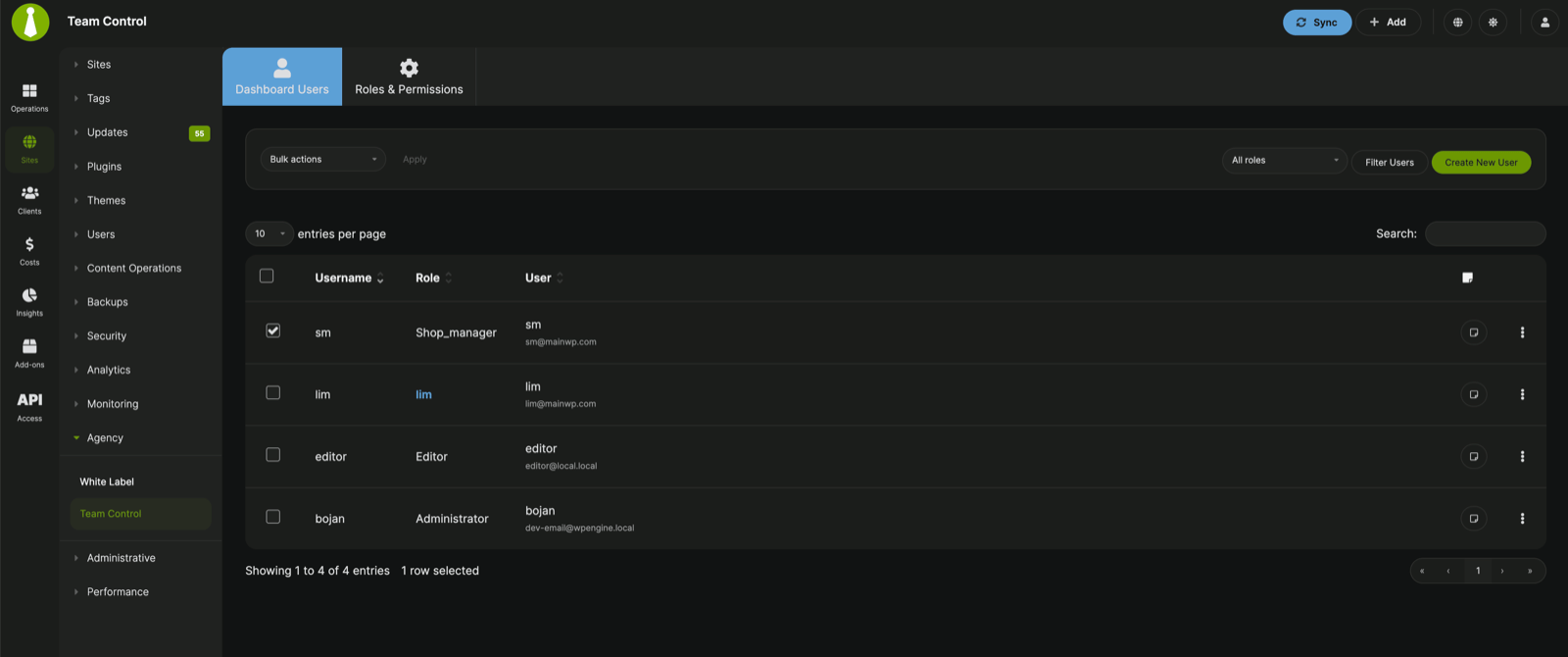
- Dashboard Users - View users immediately, filter by one or more roles, search the users table, and apply bulk actions.
- Roles & Permissions - Create roles, review role descriptions, see how many users have each role, and manage or delete roles.
Team Control Owners
Only registered Team Control owners can manage Team Control roles, users, and notes. An owner must retain WordPress administrator permissions and must not hold a Team Control custom role. You cannot delegate owner access through a custom role or the Allowed Add-ons list. When no owner registry exists, Team Control registers all eligible administrators as initial owners. Creating an administrator after the registry exists does not automatically make that account an owner. Keep at least one eligible owner account available. If Team Control reports that only an owner can manage roles and users, sign in with an existing owner or follow Recover Owner Access.Upgrade to Team Control 5.2
Back up the complete Dashboard database before updating
Confirm that an administrator can become an owner
Update Team Control and open the Dashboard as that administrator
Review the migration notices and Roles & Permissions
Review users with multiple Team Control roles
Resolve Roles on Hold
A role that cannot be migrated safely is marked On hold in Roles & Permissions. Held and disabled roles grant no MainWP permissions. Review the explanation beside the role before restoring or editing it.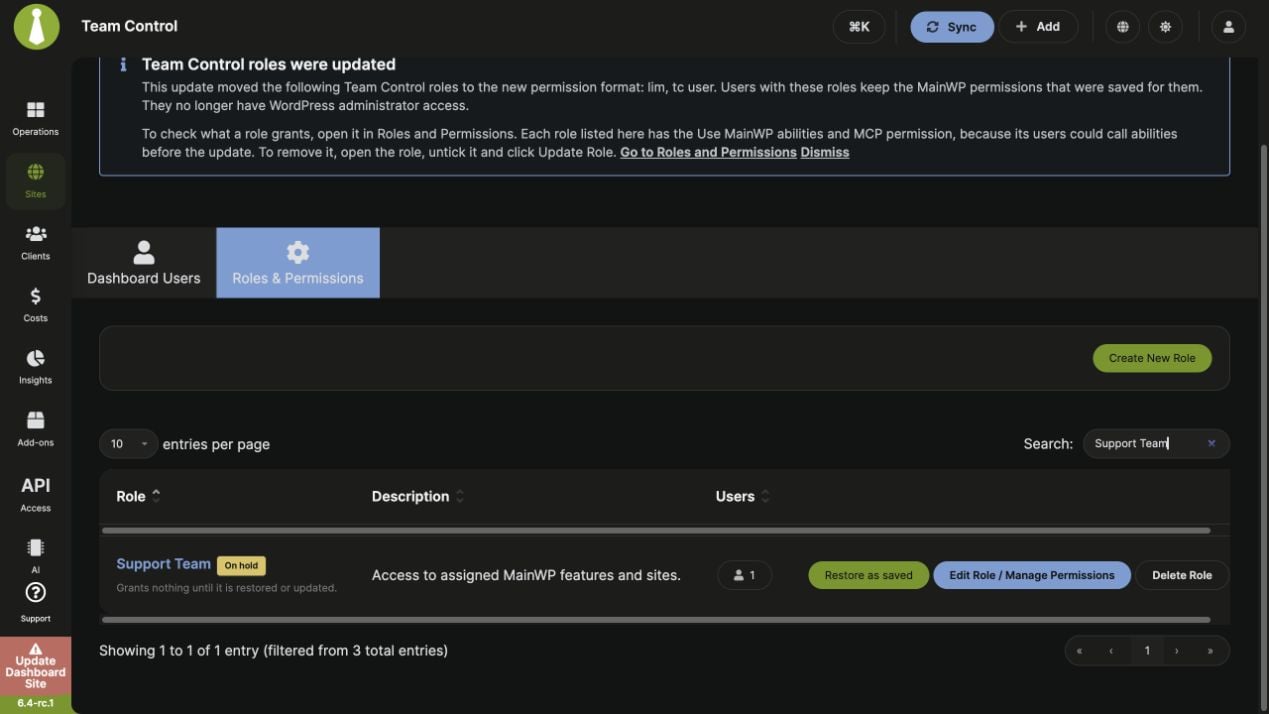
Open Team Control as an owner and select Roles & Permissions
Choose how to recover the role
Review the restored role's access
Recover Owner Access
If the Team Control is waiting for an owner notice appears, the update cannot finish migrating roles. Until an eligible owner is available, unmigrated roles keep working as they did before the update, including their previous WordPress access. If no owner registry exists, remove the Team Control custom role from an administrator account while retaining its administrator role, then reload WordPress admin. If an existing owner became ineligible, restore that account’s administrator access and remove any Team Control role assigned to it. If another administrator must become an owner, use WP-CLI on the Dashboard installation. The account running the command must have WordPress administrator permissions. The target account must have administrator permissions and no Team Control custom role.-
Prepare the owner change. Replace
123with the target user’s ID andadmin-loginwith the administrator running the command: -
Apply the change within ten minutes using the returned confirmation token and the same administrator:
- Reload WordPress admin so any waiting migration can finish.
Create a Custom Role
Log in to your MainWP Dashboard as a Team Control owner
Open Team Control
Go to the Roles & Permissions tab
Click the Create New Role button in the action bar
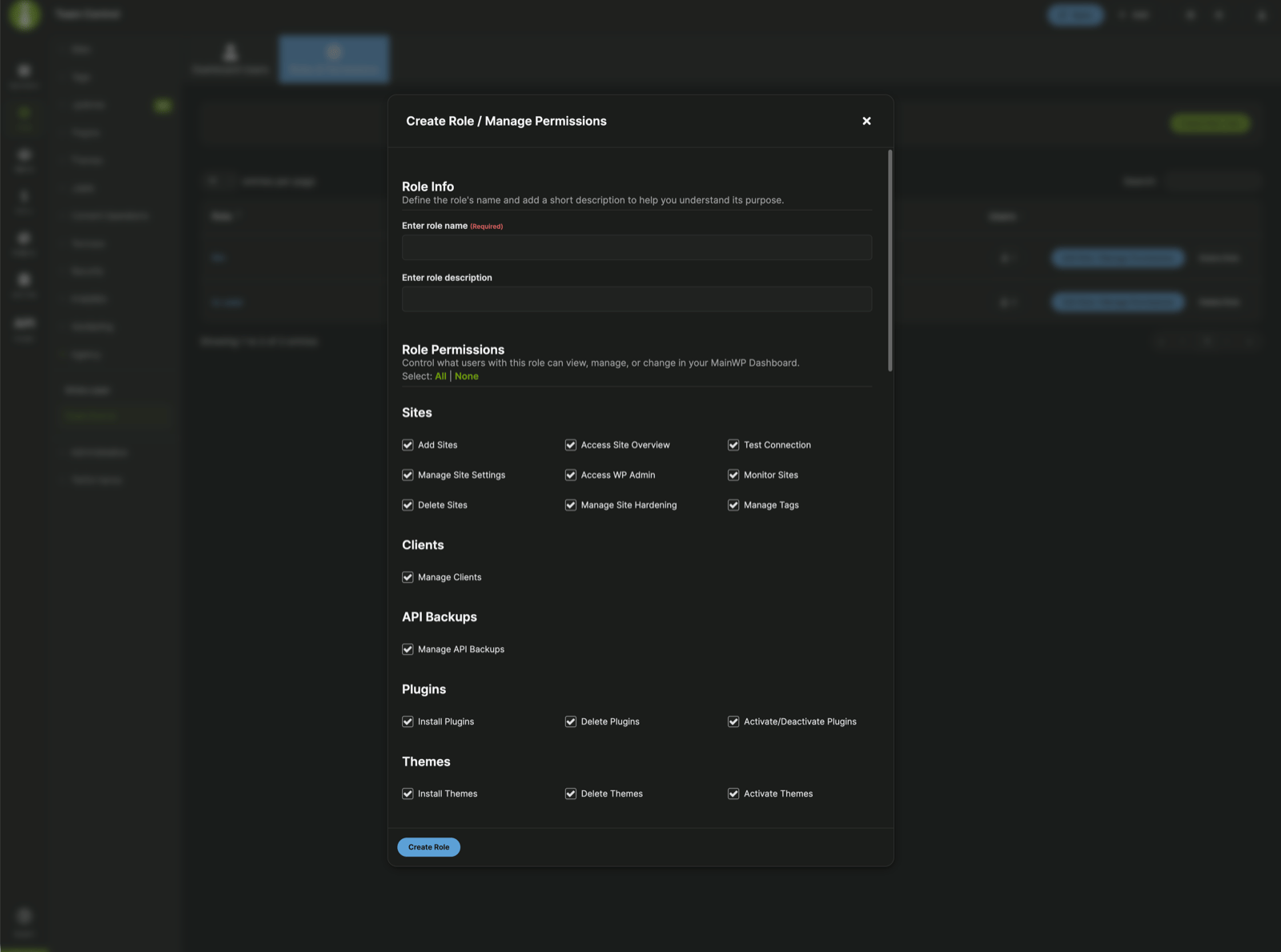
Enter the role name and description
Configure the role permissions in the same modal
Click the Create Role button
Define Role Permissions
Log in to your MainWP Dashboard as a Team Control owner
Open Team Control
Go to the Roles & Permissions tab
Locate the previously created role
Click the Edit Role / Manage Permissions button
Set MainWP Dashboard permissions
Set API Access permissions
Set Allowed Add-ons
Set Allowed Sites
Click the Update Role button
Backup Permissions
The Backups permission group controls backup actions such as execution, restoration, downloads, and backup task management. On a Dashboard with built-in backups, this group appears when built-in backups are enabled. On older Dashboards, its visibility follows the legacy backup setting. API Backups remains a separate permission group. MainWP Dashboard 6.4.1 adds separate permissions for deleting backup snapshots and running Clean Up. Review both when configuring a role that manages built-in backups. Delete Backups controls whether staff can delete existing backups. It appears after Download Backups and is enabled by default for new roles. Untick it to let a role run backups without deleting them. When you update to a Team Control version that adds Delete Backups, existing roles that have Execute Backups receive it automatically. Team Control applies this grant once, the first time a Team Control owner opens WordPress admin after the update. Until then, staff keep their current ability to delete backups. After the grant runs, you can untick Delete Backups on any role, and Team Control does not add it back.Cost Tracker Permissions
The Cost Tracker permission group includes Manage Cost Tracker Settings, which controls whether staff can change Cost Tracker settings. When you update to Team Control 5.2.1, existing roles that have Manage Dashboard Settings receive Manage Cost Tracker Settings automatically, so staff who could manage Cost Tracker settings before keep that access. Team Control applies this grant once, the first time a Team Control owner opens WordPress admin after the update. Roles that already have Manage Cost Tracker Settings explicitly enabled or disabled keep their saved choice. After the grant runs, you can untick Manage Cost Tracker Settings on any role, and Team Control does not add it back.Abilities and MCP Permissions
In the role editor, find API Access > Abilities and MCP > Use MainWP abilities and MCP. This permission allows restricted users to run an approved set of MainWP Dashboard abilities, including through the MainWP MCP Server. Their site access and operation permissions continue to apply.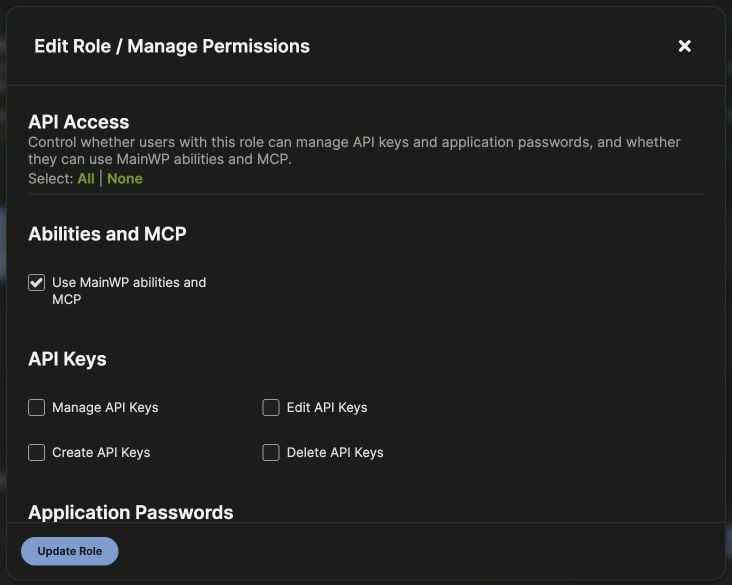
- On compatible Dashboards with ability scoping, the approved set includes scoped site, client, tag, update, and built-in backup operations. Site creation, tag creation or editing, and batch operations are excluded.
- On MainWP Dashboard 6.2, 6.2.1, 6.2.2, and 6.2.3, restricted users can run only
list-sites,count-sites, andget-sites-basic, limited to their allowed sites. - The permission does not grant access to Team Control’s own management abilities or other add-ons’ abilities.
Assign Role to a User
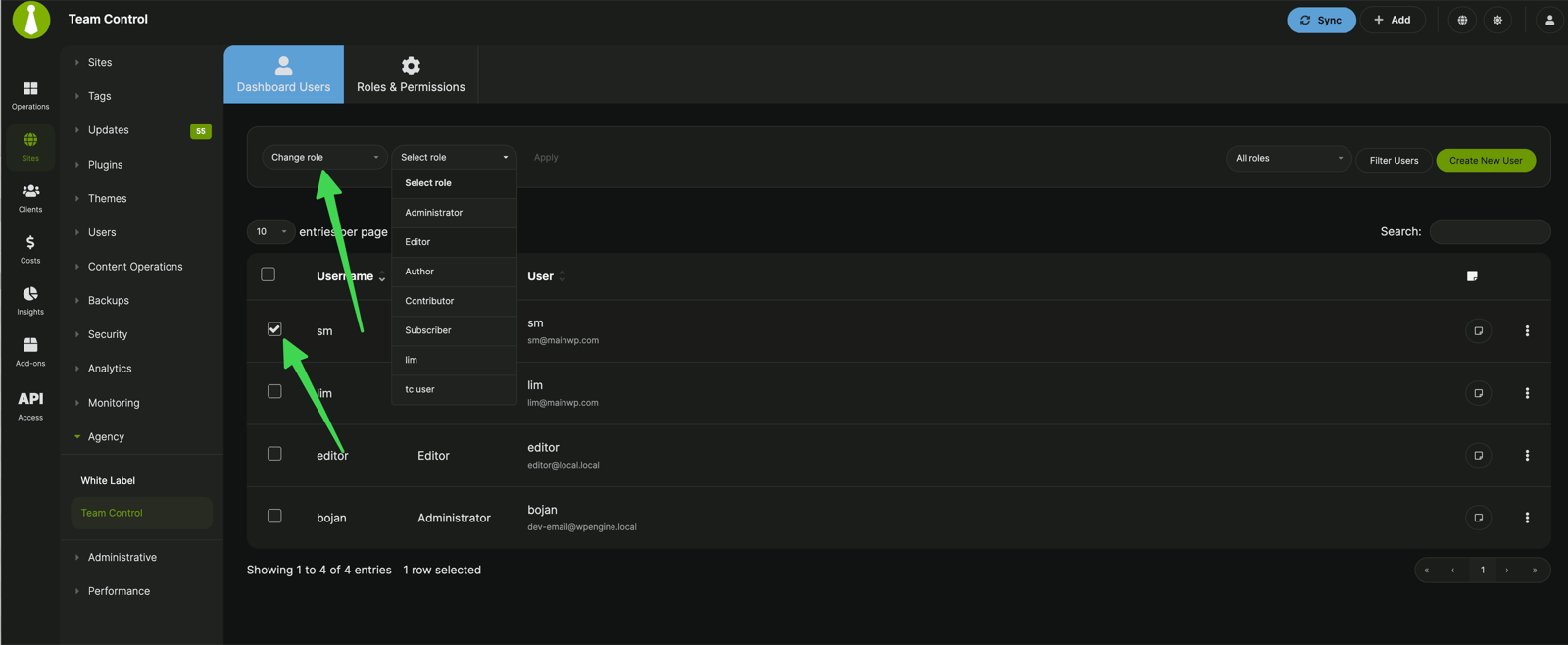
Log in to your MainWP Dashboard as a Team Control owner
Open Team Control
Go to the Dashboard Users tab
Filter or search for the user
Select the user
Choose Change role from the Bulk actions menu
Edit Custom Role
Log in to your MainWP Dashboard as a Team Control owner
Open Team Control
Go to the Roles & Permissions tab
Locate the role you want to edit
Click the Edit Role / Manage Permissions button
Set MainWP Dashboard permissions
Set API Access permissions
Set Allowed Add-ons
Set Allowed Sites
Click the Update Role button
Delete Custom Role
Log in to your MainWP Dashboard as a Team Control owner
Open Team Control
Go to the Roles & Permissions tab
Locate the role you want to delete
Click the Delete Role button
Reassign affected users if prompted
Click the Delete Role button in the confirmation dialog
Team Control Abilities
Team Control 5.2 registers 12 abilities in themainwp-team-control category. They let an authenticated owner list available permissions, read and manage roles and users, update user notes, and reconcile roles that need recovery. These abilities require the WordPress Abilities API and MainWP Dashboard’s abilities integration.
Management access remains restricted to registered owners. Assigning Use MainWP abilities and MCP to a custom role does not authorize its users to manage Team Control.
Changes through these abilities require a preview followed by confirmation. Automation must review the preview and use its returned confirmation token; it must also supply current revisions where the operation requires them. Full role replacements replace the prior permission set, rather than adding to it.
Role and membership changes run one at a time and use database transactions. Team Control validates its table structure and uses InnoDB for its own tables. WordPress options and user metadata can only participate in rollback when their core tables also use transactional storage. After a failed change, review the reported role and membership state before retrying.
Related Resources
- White Label Extension - Rebrand MainWP for clients
- Agency Add-ons - Browse agency add-ons
- Abilities API Overview - Platform requirements and authentication
- MainWP MCP Server - Connect tools to your MainWP Dashboard
- Database Health Check - Check MainWP database tables