
What You’ll Learn
- How to manage comments across multiple sites
- Using bulk actions for comment moderation
- Approving, unapproving, spam marking, and deleting comments
- Customizing comment display settings
- Managing comments through the REST API and MainWP Abilities
The Recent Comments Widget
A great addition to this add-on is the Recent Comments widget. It shows the latest Approved and Pending comments from your sites and provides quick links to moderate them or open the full comments page.Manage Comments
The MainWP Comments Extension allows you to manage comments on your websites. It lets you remotely- Approve
- Unapprove
- Mark as Spam
- Not Spam
- Move to Trash
- Restore
- Edit
- Delete Permanently
Log in to your MainWP Dashboard
Go to the MainWP > Sites > Content Operations > Comments page
Select the Child Sites you want
Use Select Status and Search Options to set your filters
- Select Status lets you filter comments by Approved, Pending, Spam, or Trash
- Containing keyword lets you find comments containing a specific word
- Date range narrows comments by the selected dates
Click the Show Comments button
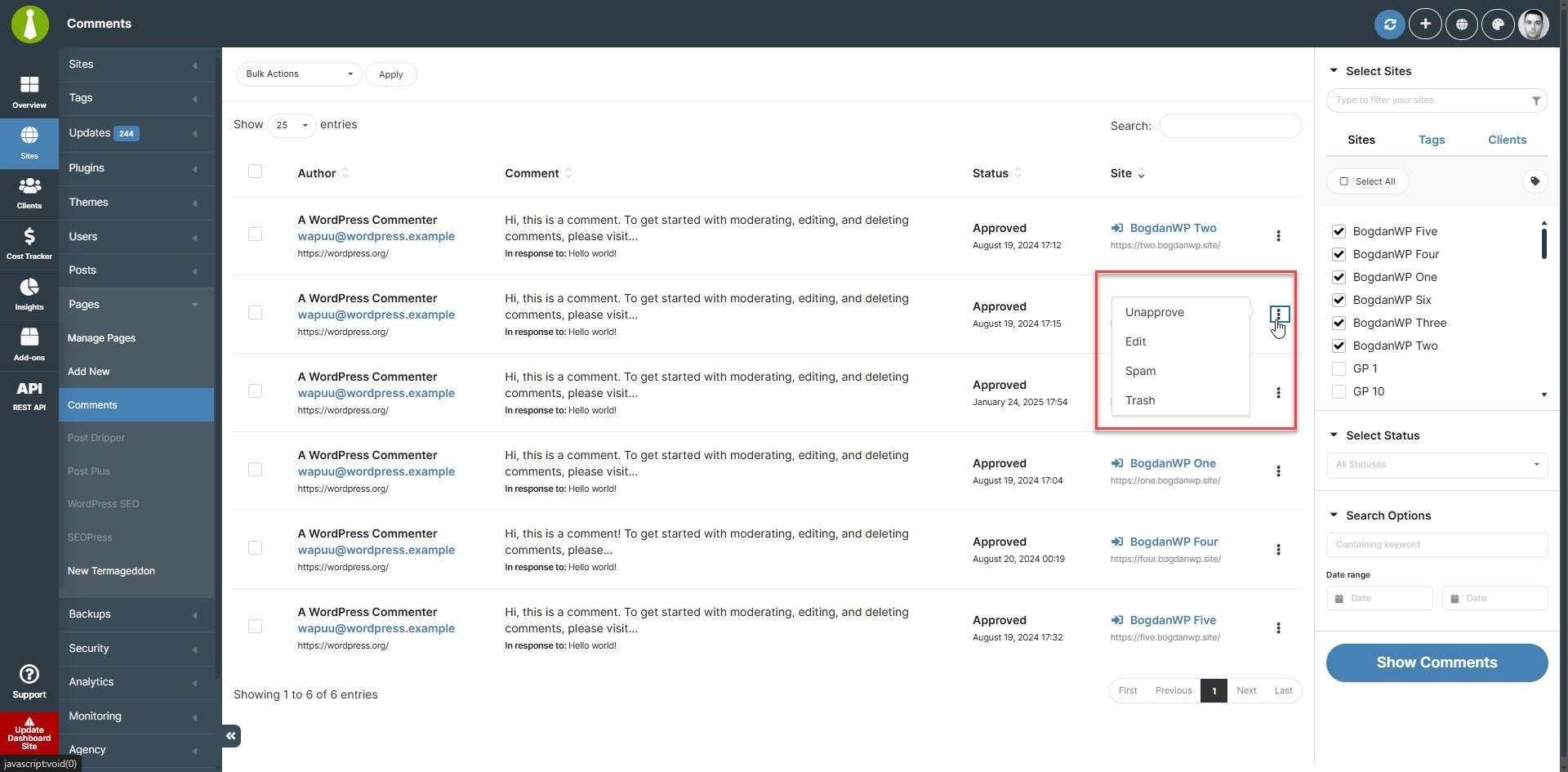
Review Bulk Moderation Results
With MainWP Child 6.3, comment moderation reports only changes completed by WordPress. A missing or invalid comment does not stop the remaining comments in a bulk action. Review the results and refresh the comment list before retrying any items that were not changed.Unapprove Comment
Log in to your MainWP Dashboard
Go to the MainWP > Sites > Content Operations > Comments page
Select the Child Sites you want
Use Select Status and Search Options to find the comments you need
Click the Show Comments button
Once the list of found comments appears
- Locate the Comment you want to update
- Click the Unapprove action in the Actions menu
Approve Comment
Log in to your MainWP Dashboard
Go to the MainWP > Sites > Content Operations > Comments page
Select the Child Sites you want
Use Select Status and Search Options to find the comments you need
Click the Show Comments button
Once the list of found comments appears
- Locate the Comment you want to update
- Click the Approve action in the actions menu
Mark Comment as Spam
Log in to your MainWP Dashboard
Go to the MainWP > Sites > Content Operations > Comments page
Select the Child Sites you want
Use Select Status and Search Options to find the comments you need
Click the Show Comments button
Once the list of found comments appears
- Locate the Comment you want to update
- Click the Spam action in the actions menu
Edit Comment
Log in to your MainWP Dashboard
Go to the MainWP > Sites > Content Operations > Comments page
Select the Child Sites you want
Use Select Status and Search Options to find the comments you need
Click the Show Comments button
Once the list of found comments appears
- Locate the Comment you want to edit
- Click the Edit action in the actions menu
Move Comment to Trash
Log in to your MainWP Dashboard
Go to the MainWP > Sites > Content Operations > Comments page
Select the Child Sites you want
Use Select Status and Search Options to find the comments you need
Click the Show Comments button
Once the list of found comments appears
- Locate the Comment you want to trash
- Click the Trash action in the actions menu
Delete Comment Permanently
In the comments list, the Delete Permanently action is available for comments that are already in Trash or marked as Spam. The comments table also includes Restore and Not Spam bulk actions. When a comment is in Trash, its row actions include Restore and Not Spam.Set Custom Comment Display Length
To set the custom comment length, please see this gist.Network Activity Logging
Comment moderation actions performed through the add-on (approve, unapprove, spam, unspam, trash, restore, delete) are recorded in Network Activity under the Comments connector. Use this to audit who moderated which comment and when, alongside the rest of your Dashboard activity. Network Activity logging must be enabled in MainWP menu (three lines, top right) > MainWP Settings > Network Activity Settings (/wp-admin/admin.php?page=SettingsInsights) for these events to be stored.
Manage Comments via the REST API
The Comments Extension exposes REST API v2 routes so you can list and moderate comments programmatically across your child sites.approve, unapprove, spam, unspam, trash, restore, delete.
Example — approve a comment on site 12:
manage_options capability, or a Team Control user with assigned sites and access to the Comments extension. Other keys receive a 403. The maximum parameter accepts up to 100 comments per site, the all-sites list queries up to 100 sites per call, and invalid filter values return a 400.
See Add-on Endpoints for the full parameter reference, paging headers, and additional examples.
Manage Comments via MainWP Abilities
Comments 6.1.0 registers five MainWP abilities in themainwp-comments category. Use them from scripts, AI assistants, or the MainWP MCP server to list comments from your child sites, read one comment, read the recent comments saved at the last sync, moderate comments, and permanently delete trashed comments.
Moderation and deletion work on one site at a time. Each comment in the request names the status you expect it to have, and the child site skips any comment whose status has changed. Permanent deletion only applies to comments in Trash and requires a preview or an explicit confirmation.
The abilities require WordPress 6.9 or later on the MainWP Dashboard site and access to the Comments Add-on. Reading one comment, moderation, and deletion also require MainWP Child 6.2 or later on the target site. See Comments Abilities for request examples, response fields, and error handling.
Related Resources
- Administrative Add-ons - Browse administrative add-ons
- Add-ons Overview - All add-on categories
- Add-on Endpoints - Comments REST API reference
- Comments Abilities - List, moderate, and delete comments through MainWP Abilities
- Network Activity - Review and configure activity logging