
What You’ll Learn
- Extracting URLs using custom tokens
- Configuring output format and separators
- Saving and loading extraction templates
- Exporting results in CSV or TXT format
- Automating extractions with the Abilities API
- Type: Post or Page
- Status: Published, Pending, Private, Scheduled, Draft, Trash
- Arbitrary keywords
- Date Range
- Child Sites
How to use URL Extractor
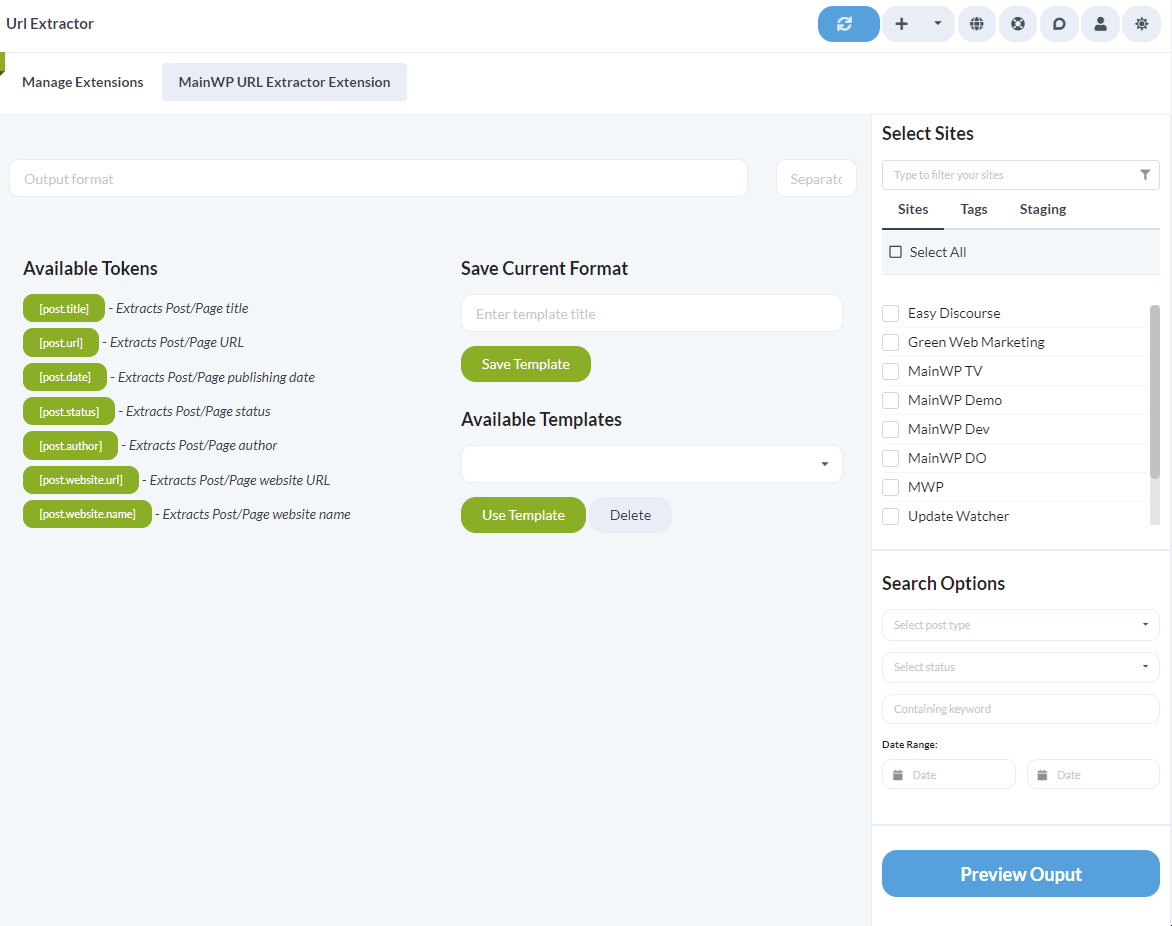
Navigate to MainWP Dashboard > Add-ons > Administrative > URL Extractor
Configure the output format using Available Tokens
This is the Post URL [post.url], and this is the Post Title [post.title]Enter a separator in the Separator field
In the Sidebar
- Select the desired Sites, either individually or by Tags
- Select the post type, either Post or Page, or both
- Select one or multiple statuses from the list: Published, Pending, Private, Scheduled, Draft, Trash
- Optionally filter the results by a Keyword
- Select the desired Date Range
Click the Preview Ouput button
Review the output in the popup modal and export it as a .txt or .csv file
URL Extractor Templates
The values in the Output format and Separator fields can be saved as templates for speed and convenience.Saving a template
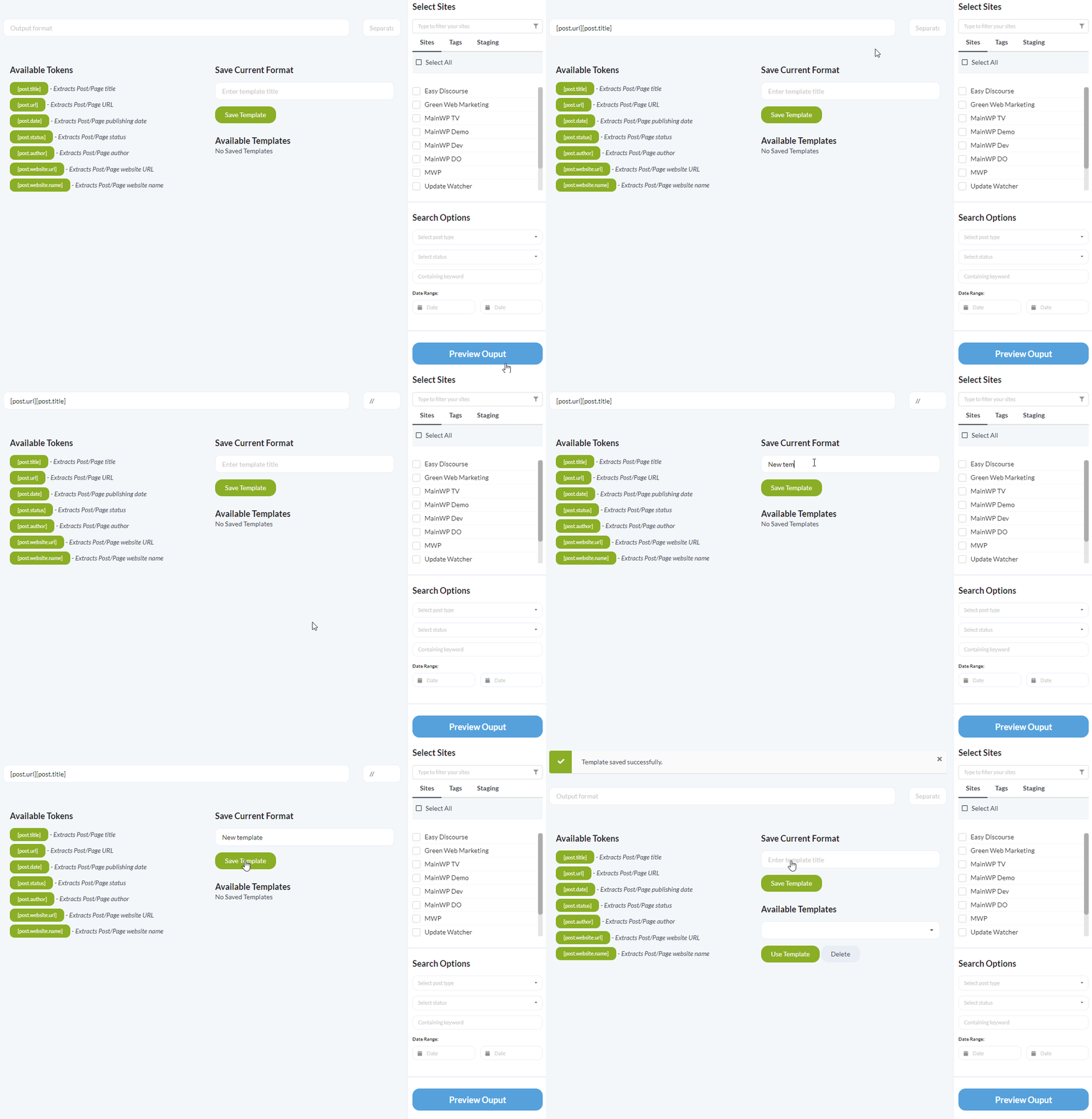
Navigate to MainWP Dashboard > Add-ons > Administrative > URL Extractor
Enter the desired text in the Output format and Separator fields
Enter the template name
Click the Save Template button
Loading a template
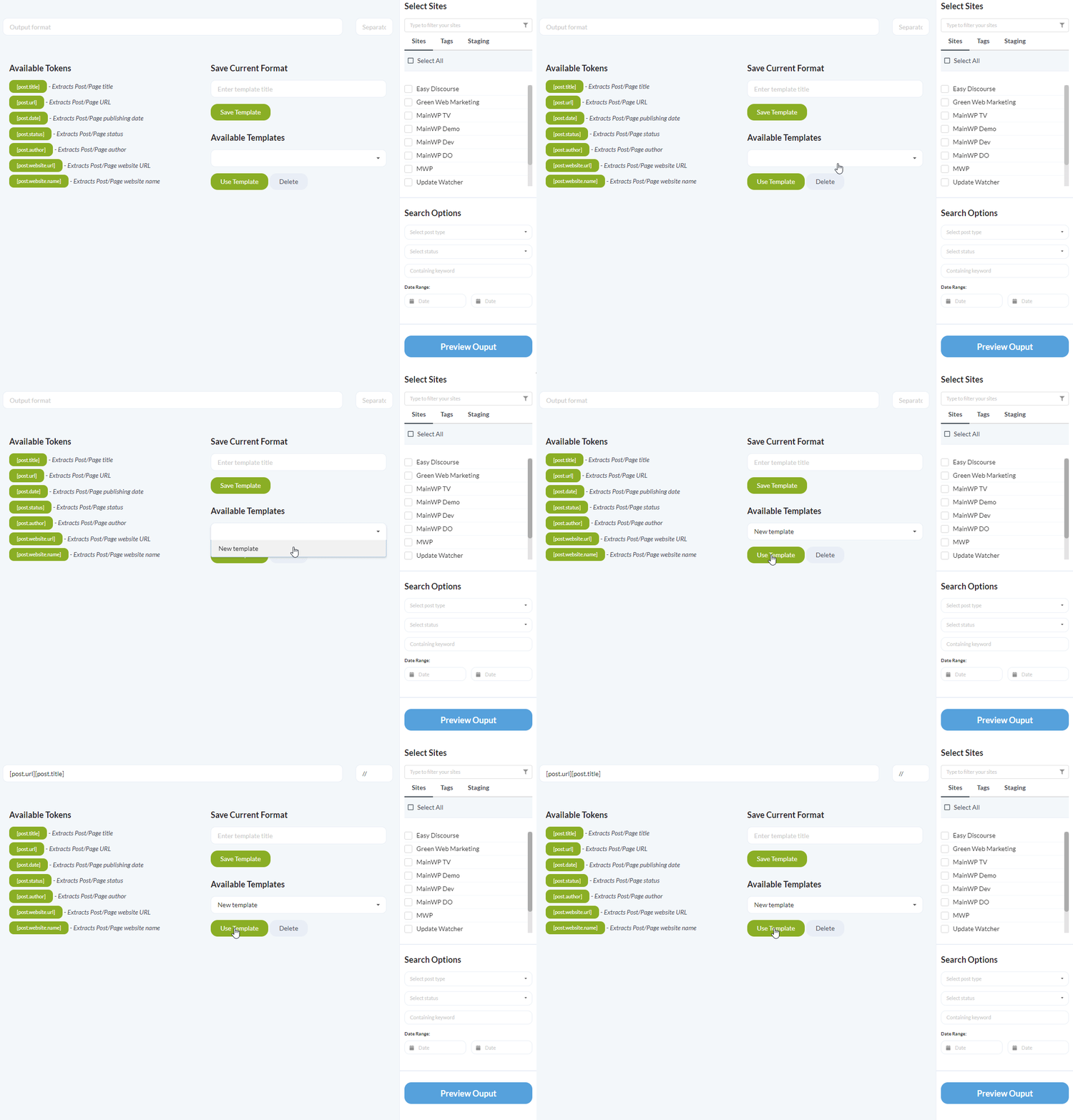
Navigate to MainWP Dashboard > Add-ons > Administrative > URL Extractor
Select the desired template from the Available Templates dropdown
Click the Use Template button
Deleting a template
Navigate to MainWP Dashboard > Add-ons > Administrative > URL Extractor
Select the desired template from the Available Templates dropdown
Click the Delete button
Template migration in version 5.1
URL Extractor 5.1 copies your saved templates to new template storage in the background. Older templates that cannot be converted are kept unchanged. When this happens, administrators see an informational notice. No action is needed, and you do not need to edit or delete old templates. The Preview Output workflow keeps working while migration runs.Abilities API
URL Extractor 5.1 adds ten abilities for AI assistants and automation tools. Use them to manage templates, run extractions across up to 100 Child sites in the background, read stored records, and create one-use TXT or CSV downloads. URL Extractor 5.1 also adds four permissions you can assign with Team Control: View Templates, Manage Templates, Extract Published Posts, and Extract Non-Public Posts. The Preview Output button checks the extraction permissions on every request. Extracting any status other than Published requires Extract Non-Public Posts. See URL Extractor Abilities for requests, examples, and errors.Increase the maximum number of Posts returned from a Child site
The URL Extractor extension returns a maximum of 50 posts from a single child site. This number can be customized with a filter. As an example, this code snippet will increase the maximum number of posts to 500.Install the Custom Dashboard extension
Add the code snippet to the PHP tab in the Custom Dashboard extension
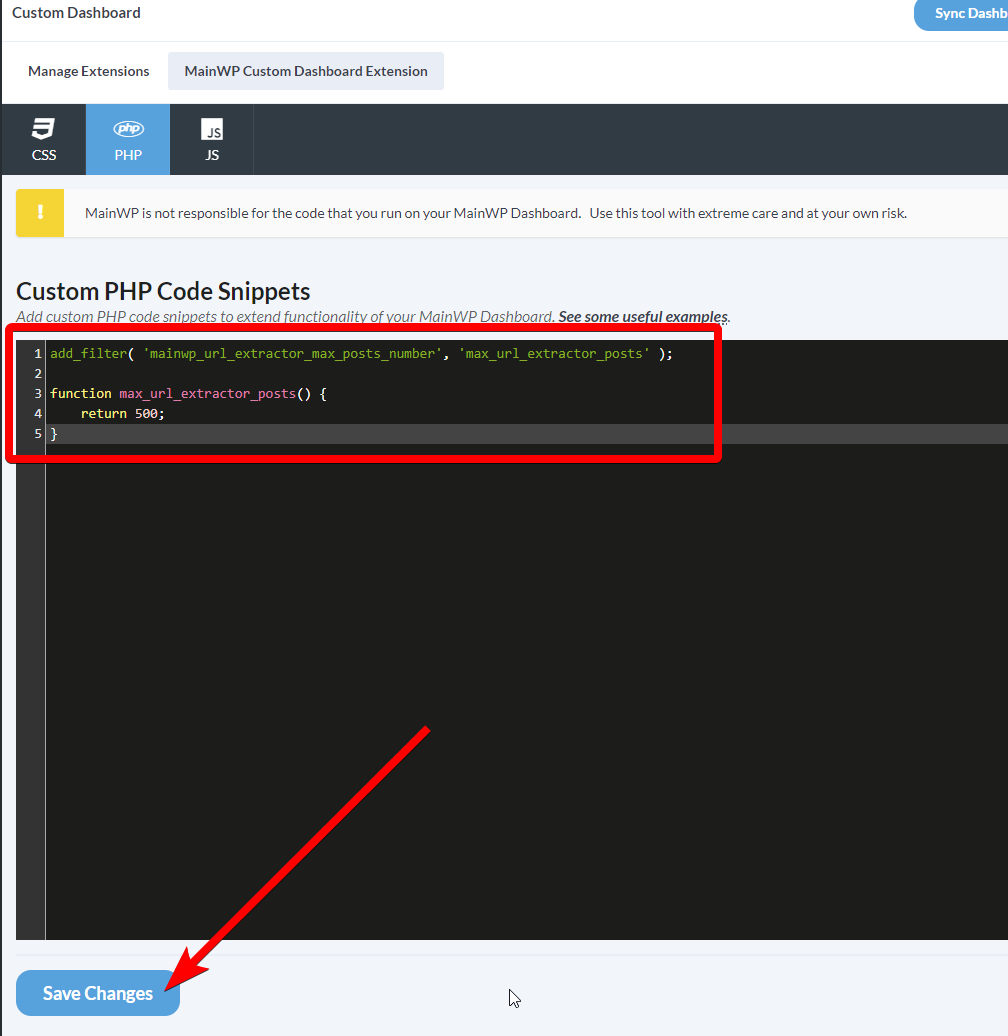
Adjust the number of returned posts as desired
Click the Save Changes button
Related Resources
- Administrative Add-ons - Browse administrative tools
- Post Plus Extension - Advanced post creation
- Manage Posts - Post management guide
- URL Extractor Abilities - Automate extractions and exports