
What You Will Accomplish
By completing these steps, you will launch the Quick Setup Wizard and be able to:- Connect a Child Site or import sites from CSV
- Review the connected site’s updates and monitoring status
- Assign the site to a client or add another site
- Choose whether to start a guided tour
Prerequisites
- MainWP Dashboard plugin installed and activated
- Administrator access to the MainWP Dashboard site
Steps
1
Open MainWP Tools
Open the three-line MainWP menu in the top-right corner, then select MainWP Tools (
/wp-admin/admin.php?page=MainWPTools).2
Start the wizard
Click the Start Quick Setup Wizard button.The Quick Setup Wizard start screen appears. Continue through each step using the wizard navigation buttons.
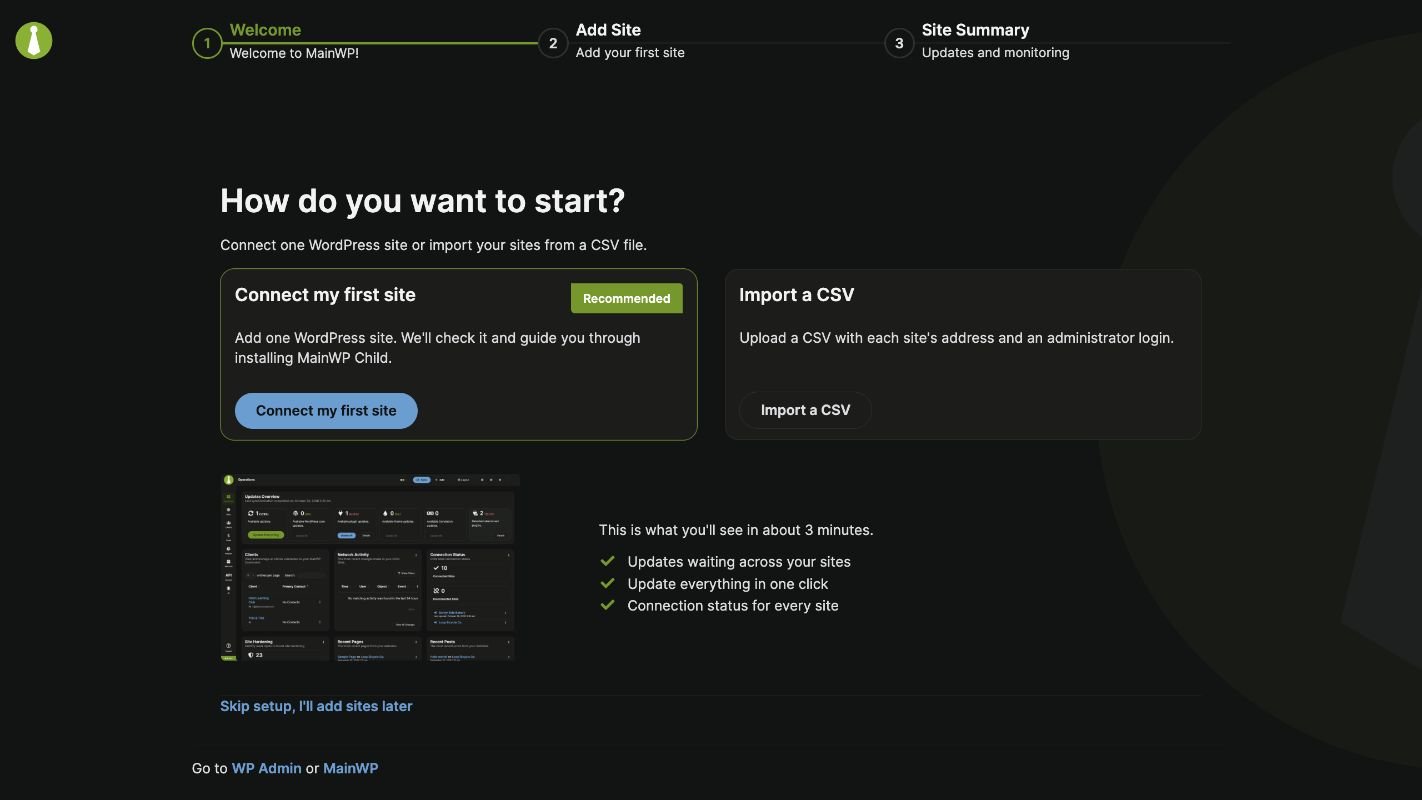
/wp-admin/admin.php?page=mainwp-setup on your Dashboard site. Restarting the wizard preserves existing monitoring settings.
Common Use Cases
- Adding your first site: You skipped the connection during installation and want to complete it now
- Onboarding a team member: Walking someone through the configuration process on a shared Dashboard
- Reviewing system requirements: Checking that your server still meets MainWP requirements after hosting changes
Troubleshooting
Self-Check
- Quick Setup Wizard Welcome screen displays after clicking the button
- You can navigate through wizard steps using the wizard navigation buttons