
- Bearer token (recommended for
/mainwp/v2) - Consumer Key and Consumer Secret (legacy
/mainwp/v1)
Use the MainWP Postman collection as the source of truth for request and response schemas.
What You’ll Learn
- How to authenticate with REST API keys
- How to create v2 API keys and optionally enable v1 compatibility in the UI
- How to manage key permissions and API access state
- Which endpoint category to use for each task
- Where to get the machine-readable OpenAPI specification
- How long-running update actions return responses
Base URL
All v2 endpoints use:Set Up API Keys
1
Configure permalinks
Go to WP Admin > Settings > Permalinks and choose any option except Plain.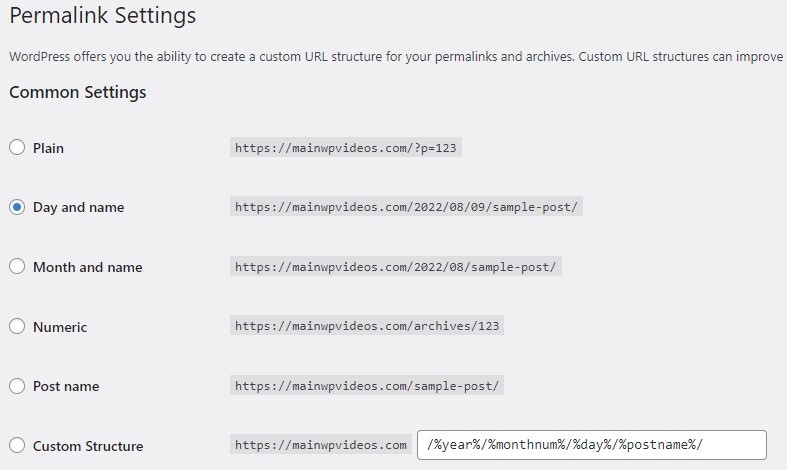
2
Create a key in API Access
Go to MainWP Dashboard > API Access > API Keys > Add API Keys and enter a key name.
3
Assign permission scope
Choose one or more permissions based on the endpoints you plan to call.
ReadforGETWrite & DeleteforPOST,PUT,PATCH, andDELETE
4
Optional: enable v1 compatibility
If an integration requires 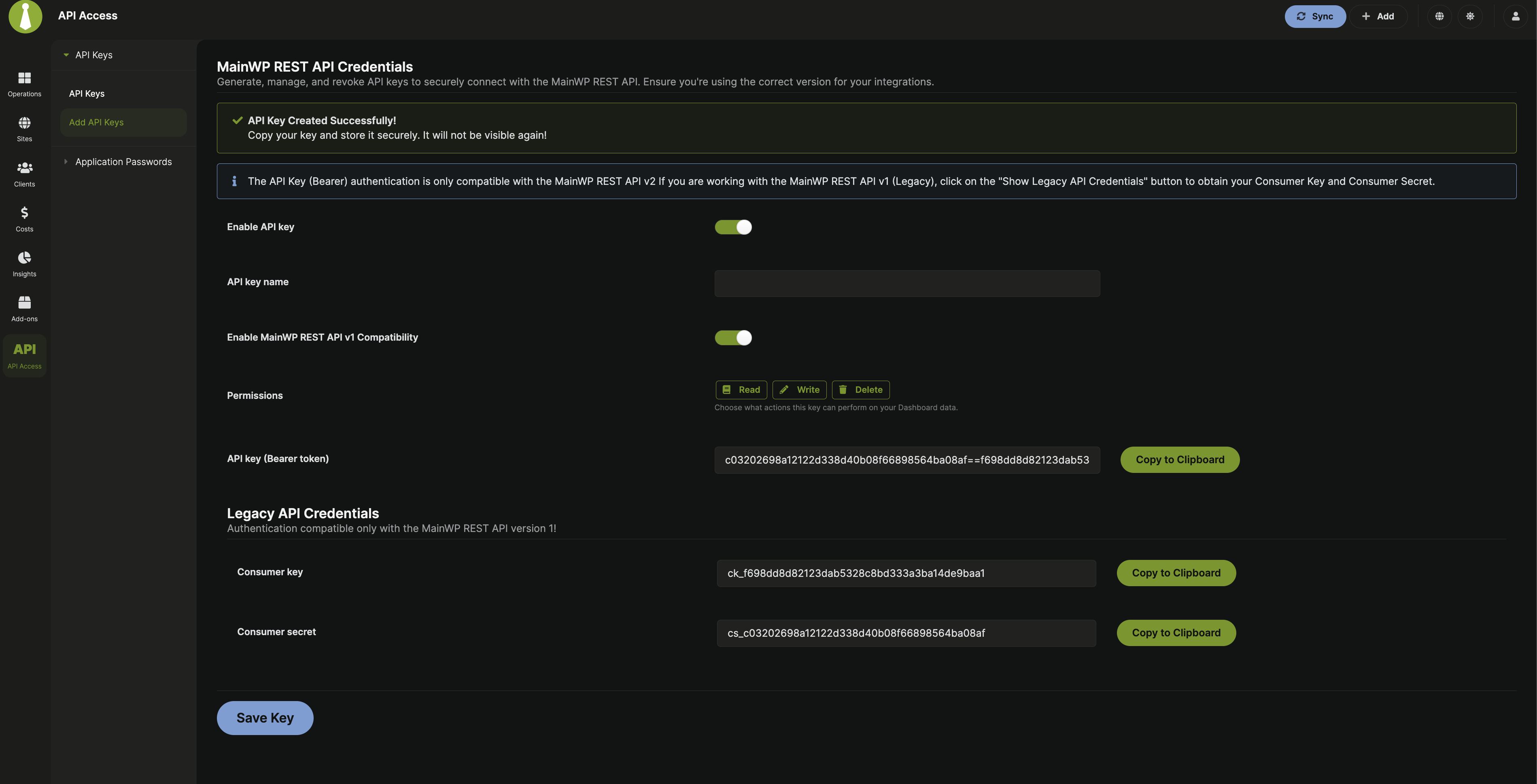
/mainwp/v1, an unrestricted Dashboard administrator can enable MainWP REST API v1 Compatibility. This generates a legacy Consumer Key and Consumer Secret alongside the v2 key.Only unrestricted Dashboard administrators can enable v1 compatibility. Team Control users can still create v2 keys when their role allows it.
5
Save and store credentials
Copy the generated credentials while they are visible and store them securely. Then click Save API Key.
6
Use the token in requests
Send it in the
Authorization: Bearer ... header for all v2 calls.Permission Scope
This table reflects v2 permission behavior.REST v2 requests on per-user installations can access only sites and tags owned by the key’s WordPress user, including administrators. Per-user mode means
mainwp_is_single_user is set to false; default single-user installations are unchanged. Team Control permissions can limit access further, but cannot grant access to another user’s records.Lists omit other users’ records. Direct requests for those records return the same error code, HTTP status, and response format as a missing record on that route. Bulk and all-sites operations select only owned sites that the user can access.Manage API Access State
MainWP REST API stays active while at least one API key is enabled.- To disable API access, disable all enabled keys in MainWP Dashboard > API Access > API Keys.
- To delete keys, use Delete for single keys or bulk delete on the same page.
Endpoint Categories
Sites
Site inventory, sync, plugins, themes, and site operations.
Clients
Client CRUD, client fields, and client-level site/cost endpoints.
Tags
Tag CRUD, plus related sites and clients.
Updates
Update listing, execution, and ignore management.
Costs
Cost tracker records, linked sites/clients, and batch operations.
Users
User listing, create/edit/delete, CSV import, and admin password updates.
Settings
General, advanced, monitoring, email, tools, and other settings domains.
Monitoring
Uptime monitor list, incidents, heartbeat, and monitor settings.
API Keys
REST API key list, create, edit, and delete endpoints.
Posts
Cross-site post listing and post CRUD actions.
Pages
Cross-site page listing and page CRUD actions.
Batch
Global
/batch orchestration across multiple controllers.OpenAPI Specification
A machine-readable OpenAPI 3.1.0 description of the full v2 API is maintained in the documentation repository:x-requires-extension since they respond only when the matching add-on is installed on your Dashboard. The info.version field records the MainWP Dashboard version the specification was written against.
Legacy v1 Compatibility
MainWP still supports legacy v1 endpoints (/wp-json/mainwp/v1/) for backward compatibility.
In the UI flow (MainWP Dashboard > API Access > API Keys > Add API Keys), you can enable MainWP REST API v1 Compatibility to generate legacy Consumer Key and Consumer Secret along with the v2 Bearer token.
Only unrestricted Dashboard administrators can create, migrate, or edit v1-compatible keys, even when a Team Control role grants API key permissions. Legacy keys apply across the whole Dashboard. The v2 API key endpoints manage v2 keys.
X-Api-Key header payload that includes consumer_key and consumer_secret.
Build new integrations on v2 first. Use v1 only where an existing integration still requires it.
Batch Update Response Handling
Batch update endpoints can queue work, return completed results, or report an existing run.- If MainWP reports a new background run, wait for it to finish, then sync your Dashboard or recheck the update endpoints. A queued response can include
job_idandqueued_count. - If MainWP reports completion and includes a
summary, read the result there. - If MainWP reports that a batch is already running, check that run before sending another start request.
failed_site_ids for sites it could not queue. Other sites in that response can continue processing. If every queue attempt fails, the endpoint returns HTTP 500 with code mainwp_rest_updates_queue_error. Check the result before retrying.